1Channel platform background pattern

Trusted By Leading Organizations

Why Choose 1Channel Leave Management Software in India?

Complete leave management solution combining leave type definitions, auto-allocation, approval policies, leave balance tracking, holiday calendar management, and carry forward rules in one system.
Define Custom Leave Types – Create Casual Leave, Earned Leave, Sick Leave, Comp Off, Maternity/Paternity Leave based on company policy.
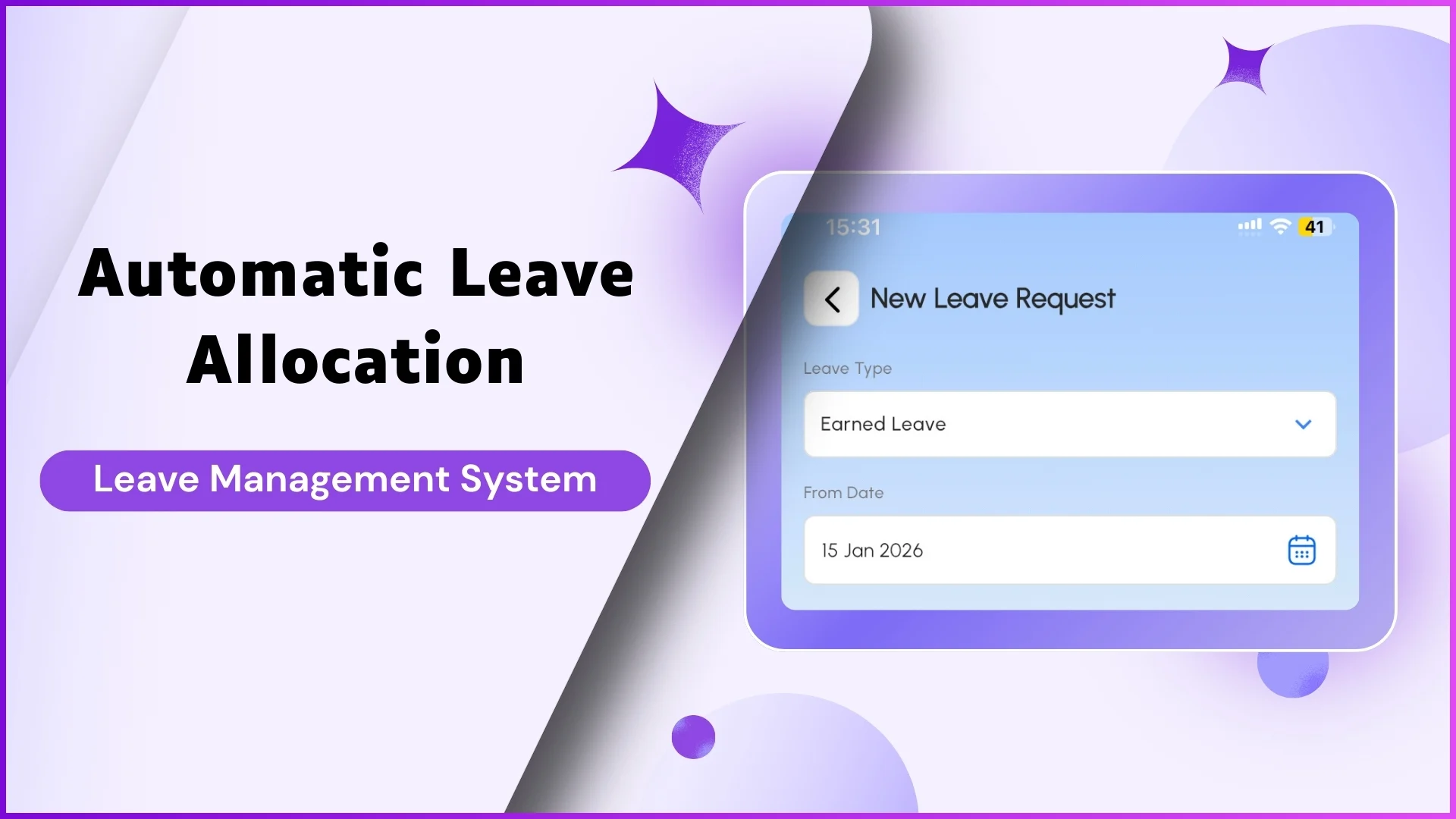
Auto-Allocate Leaves – System automatically grants leaves per month per employee (amount fully configurable: 1, 1.5, 2, etc.) based on company policy.
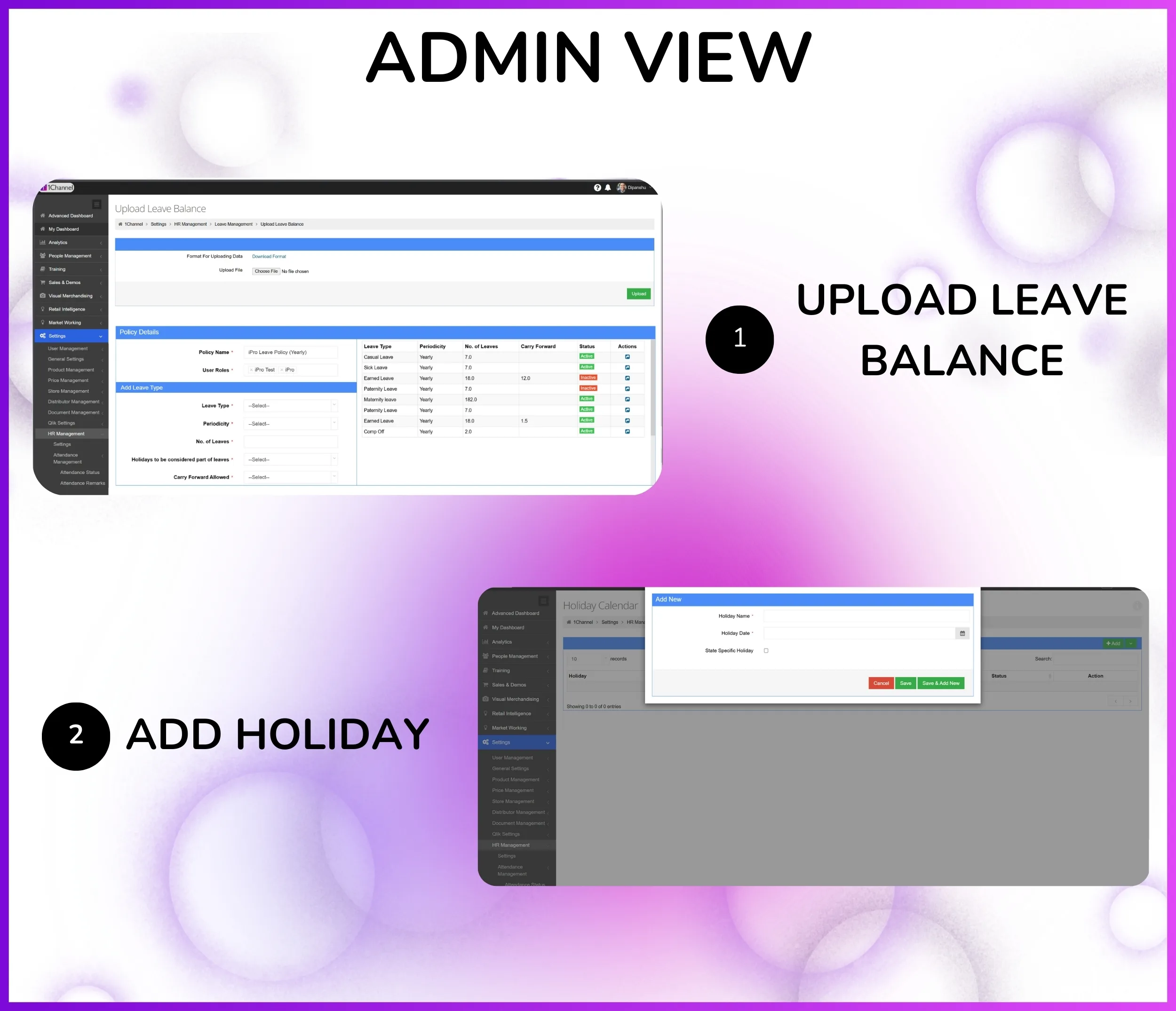
Leave Balance Management – Bulk upload leave balance via Excel, download current balances, track used vs available leaves in real-time.
Carry Forward Rules – Auto-carry forward unused leaves to next cycle (limit configurable per leave type: 10, 12, 15, etc.) based on company policy.
Approval Policy Configuration – Define who approves whose leaves based on reporting hierarchy with multi-level approval workflows.
Holiday Calendar Management – Upload company holidays visible to all employees, region-wise holiday calendars for multi-location teams.
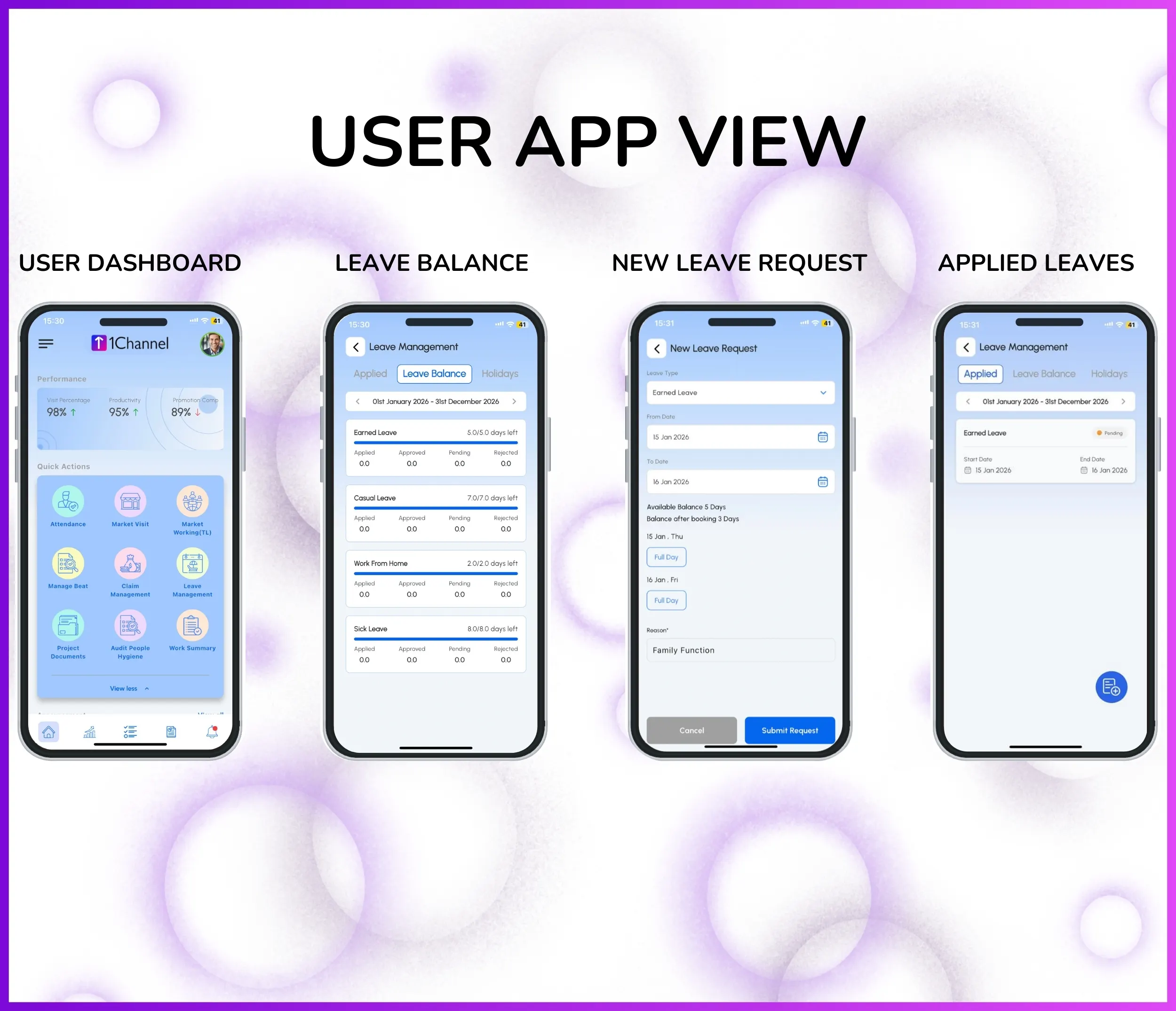
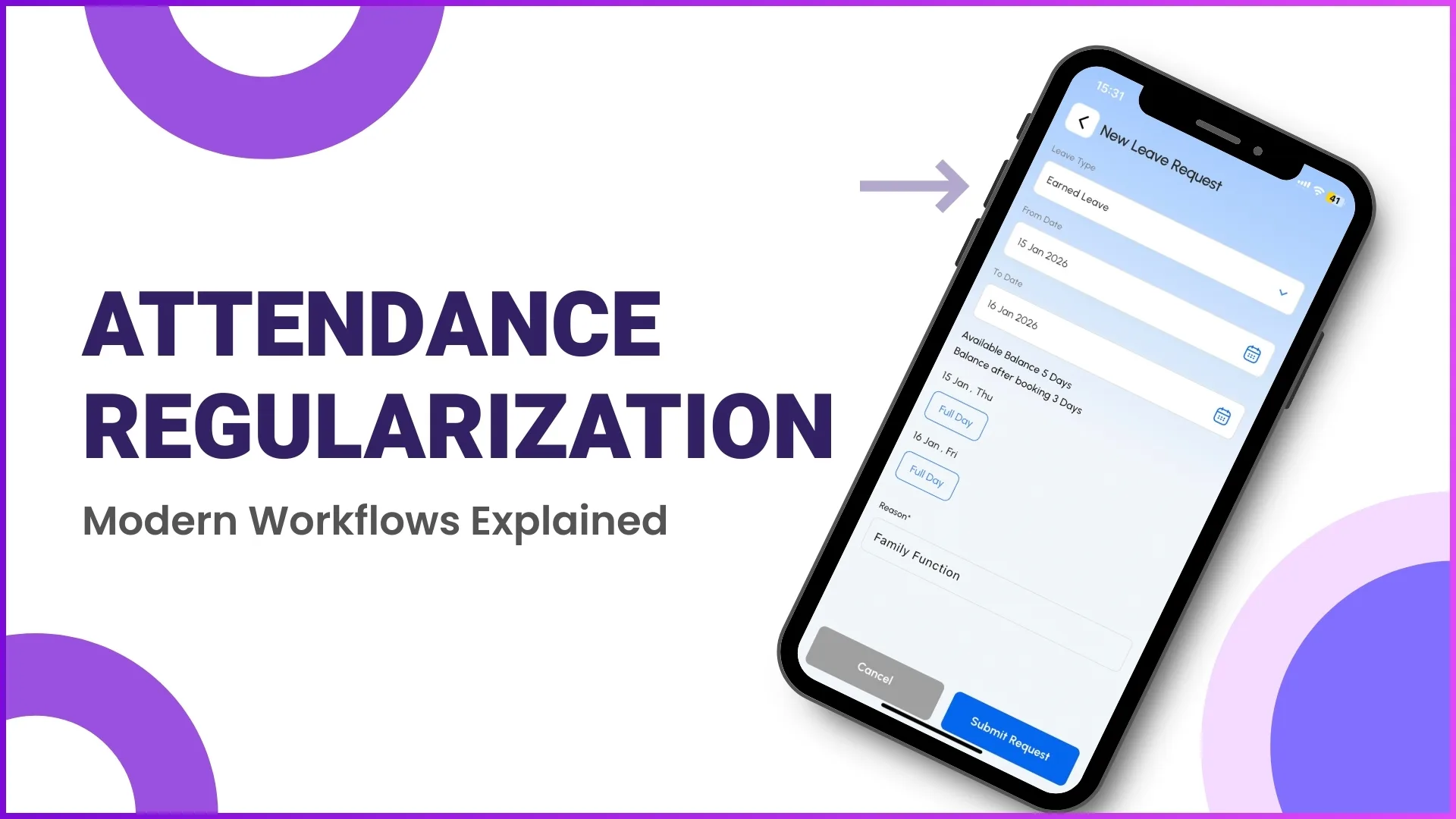
Mobile Leave Application – Employees apply for leaves from mobile app with From Date, To Date, leave type, and reason.
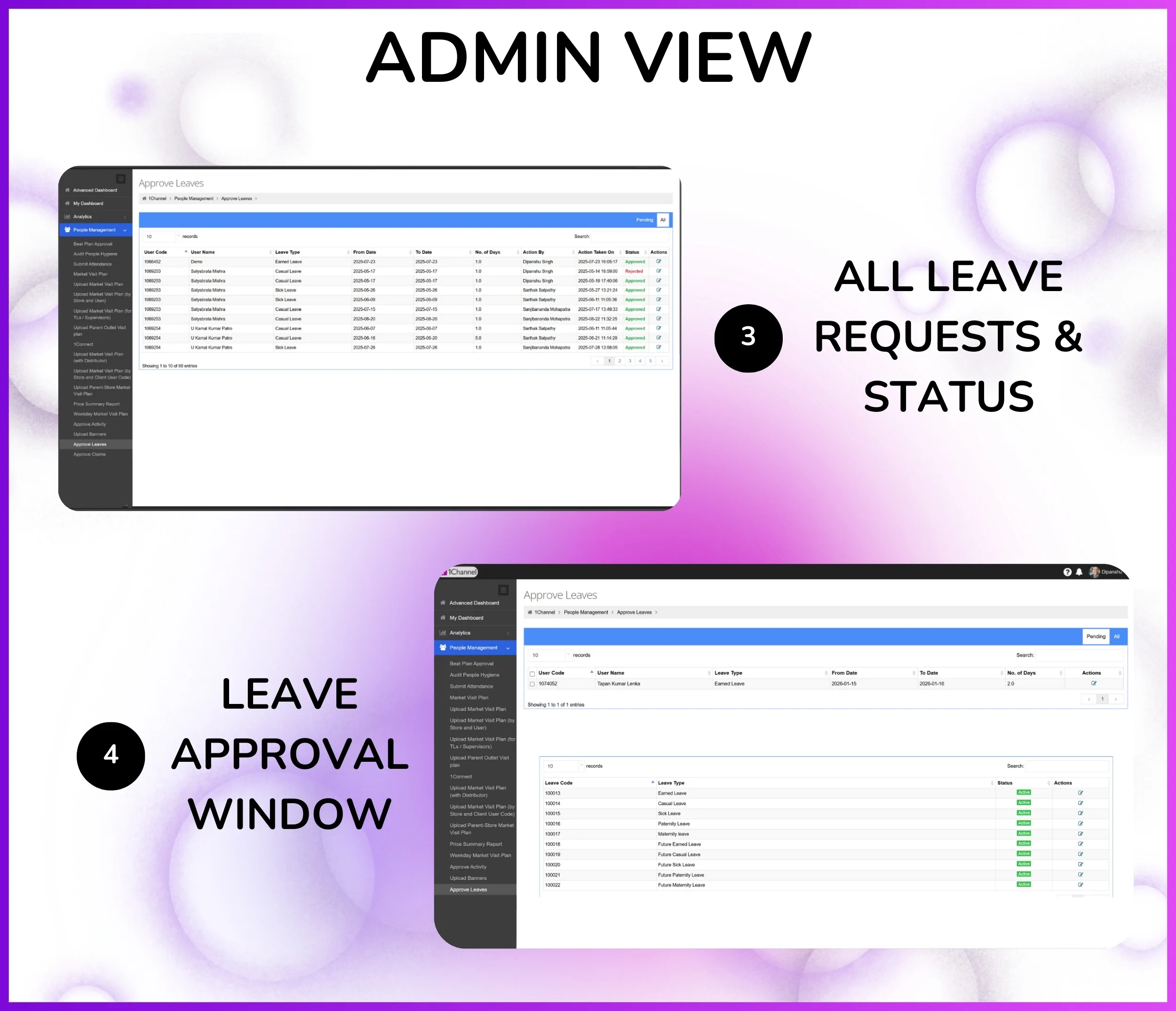
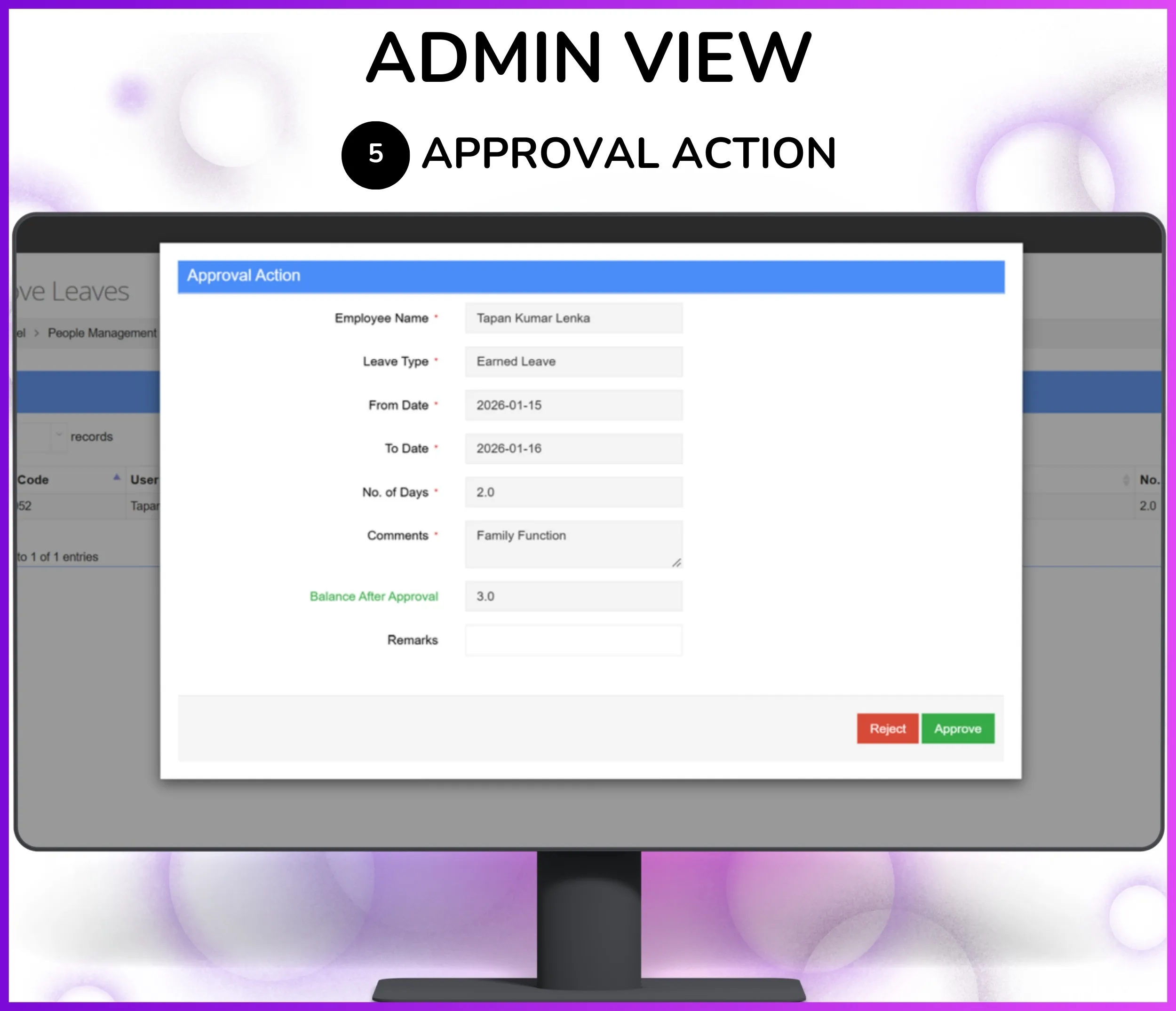
Manager Approval Dashboard – Reporting heads see leave requests with employee name, leave type, duration, and can approve/reject from portal.

What is Leave Management Software?

Leave management system that handles leave type definitions, leave balance uploads, auto-allocation of leaves, approval policy configuration, holiday calendars, and carry forward rules—replacing manual Excel tracking and email approvals.

Admins configure leave policies and approval workflows from portal while employees submit leave applications from mobile app and managers approve from portal based on reporting hierarchy.

What It Does:

  • Defines leave types (Casual, Earned, Sick, Comp Off, Maternity/Paternity)
  • Uploads and tracks leave balance for all employees via Excel
  • Auto-allocates leaves per month per employee (amount configurable as per company policy)
  • Configures approval policies based on reporting hierarchy
  • Manages holiday calendar visible to all employees
  • Auto-carries forward unused leaves to next cycle (limit configurable per leave type)
  • Routes leave requests to reporting heads for approval
  • Downloads leave balance reports showing used vs available leaves

Eliminates manual leave tracking — replaces Excel sheets and email approvals with automated leave workflows.

Why Leave Management Software is Essential?

Centralized leave management ensures accurate leave tracking, automates allocation and carry forward, streamlines approval workflows, and integrates with payroll systems for distributed teams.

1. Stop Leave Tracking Errors

  • Single source of truth for all employee leave balances
  • 100% accurate leave balance showing used vs available leaves
  • Eliminates manual Excel tracking and calculation errors
  • Real-time leave balance updates after every approval/rejection

2. Automate Leave Allocation

  • Auto-allocate leaves monthly per employee (allocation amount configurable as per company policy)
  • No manual intervention needed for monthly leave credit
  • Configurable allocation rules per leave type (Casual, Sick, Earned)
  • Bulk upload initial leave balance via Excel

3. Streamline Approval Workflows

  • Define approval policy based on reporting hierarchy
  • Leave requests automatically route to reporting heads
  • Manager approves/rejects from portal with one click
  • Employee gets real-time status updates in mobile app

4. Handle Carry Forward Automatically

  • Auto-carry forward unused leaves to next cycle (maximum limit configurable per leave type)
  • No manual carry forward calculation at year-end
  • Configurable carry forward limits per leave type
  • Prevents leave balance loss due to manual oversight

5. Integrate with Payroll

  • Leave balance data syncs with attendance closure for payroll
  • Download leave balance reports in Excel/CSV format
  • Accurate unpaid leave calculation for salary processing
  • Paid leave vs unpaid leave breakdown by employee

6. Maintain Holiday Calendar

  • Upload company holidays visible to all employees in app
  • Region-wise holiday calendars for multi-location teams
  • Employees see holidays when planning leave applications
  • Prevents leave applications on declared holidays

Define Leave Types

Admin creates custom leave types based on company policy including Casual Leave, Earned Leave, Sick Leave, Comp Off, Maternity/Paternity Leave with configurable rules per leave type.

How It Works:

  • Admin goes to Settings → HR Management → Leave Management → Defining Leave Type
  • Creates leave type with name (e.g., "Casual Leave", "Earned Leave", "Sick Leave")
  • Defines if leave type is paid or unpaid
  • Sets whether leave type allows carry forward or not
  • Configures maximum carry forward limit (e.g., 12 leaves)
  • Leave types become available in mobile app for employee selection

Common Leave Types:

  • Casual Leave (CL) — short-term leaves for personal reasons, usually non-carry forward
  • Earned Leave (EL) — earned through work tenure, carry forward enabled, auto-allocated monthly (amount as per policy)
  • Sick Leave (SL) — medical leaves, may require medical certificate after threshold
  • Comp Off — compensatory leave for working on holidays/weekends
  • Maternity/Paternity Leave — statutory leaves with configurable duration per company policy
  • Loss of Pay (LOP) — unpaid leave when all leave balance exhausted

Note: Leave type definitions fully configurable per organization's leave policy and statutory requirements.

Upload & Track Leave Balance

Bulk upload initial leave balance for all employees via Excel and download current leave balance showing used vs available leaves for each leave type.

Upload Leave Balance:

  • Go to Settings → HR Management → Leave Management → Upload Leave Balance
  • Download Excel template with columns: Employee Code, Leave Type, Opening Balance
  • Fill employee leave balances (e.g., Ayush → Casual Leave: 10, Earned Leave: 15)
  • Upload filled Excel file to system
  • System validates employee codes and leave types before import
  • Initial leave balance set for all employees in one bulk upload

Download Leave Balance:

  • Go to Settings → HR Management → Leave Management → Download Leave Balance
  • Download Excel report with columns: Employee Code, Employee Name, Leave Type, Opening Balance, Used Leaves, Available Balance
  • Real-time leave balance showing current status for all employees
  • Useful for payroll integration and monthly leave reports
  • Filter by leave type or employee to check specific balances

Note: Leave balance updates in real-time after every approved/rejected leave application.

Auto-Allocate Leaves

System automatically credits earned leaves per month per employee without manual intervention based on configured leave policy. Allocation amount is fully configurable as per company policy.

How Auto-Allocation Works:

  • Admin configures auto-allocation rule in leave policy settings
  • Example policy: "Grant 1.5 Earned Leave per month" (amount fully configurable)
  • System runs auto-allocation on configured day (e.g., 1st of every month)
  • Credits configured leave amount to every active employee's leave balance
  • Example calculation: If policy is 1.5 leaves/month → Annual total: 18 earned leaves/year
  • No manual credit entry needed by admin

Configurable Allocation Rules:

  • Allocation amount — configure 1.5, 2, or any custom amount per month
  • Allocation frequency — monthly, quarterly, or annual allocation cycles
  • Leave type selection — auto-allocate only for Earned Leave or specific leave types
  • Employee filters — allocate only to full-time employees, exclude contractors
  • Pro-rata allocation — new joiners get pro-rated leaves based on joining date

Note: Auto-allocation rules fully configurable per organization's leave accrual policy and statutory requirements.

Configure Approval Policies

Define who approves whose leaves based on organization's reporting hierarchy with multi-level approval workflows for different leave types.

How Approval Policy Works:

  • Go to Settings → HR Management → Leave Management → Define Approval Policy
  • System reads organization hierarchy from User Management → Assign Users section
  • Example hierarchy: Promoter (Ayush) → Team Leader (Ravi) → Manager (Priya) → Head (Amit)
  • Configure approval rule: "All leave requests go to immediate reporting head"
  • When Ayush applies leave, request automatically routes to Ravi (his reporting head)
  • Ravi sees leave request in portal → Approve Leaves section with all details

Advanced Approval Configurations:

  • Single-level approval — leave requests go only to immediate reporting head
  • Multi-level approval — requests requiring approval from both TL and Manager
  • Leave type specific policies — Casual Leave: 1-level, Maternity Leave: 2-level approval
  • Duration-based escalation — leaves >5 days require manager approval regardless of hierarchy
  • Auto-approval rules — leaves <1 day auto-approved if balance available (optional)

Note: Approval policies sync with organization hierarchy and update automatically when reporting structure changes.

Employee Leave Application & Manager Approval

Employees submit leave applications from mobile app with leave type, dates, and reason while managers approve/reject from portal with complete visibility.

Employee Leave Application (Mobile App):

  • Employee opens 1Channel SFA mobile app
  • Goes to Leave section → Apply Leave
  • Sees current leave balance for all leave types (Casual: 8 available, Earned: 12 available)
  • Selects leave type from dropdown (Casual Leave, Earned Leave, Sick Leave)
  • Selects From Date and To Date using date picker
  • System automatically calculates No. of Days
  • Enters leave reason (e.g., "Family function", "Medical checkup")
  • Submits leave application
  • App shows "Leave request submitted to reporting head" confirmation

Manager Approval (Portal Dashboard):

  • Manager logs into portal → People Management → Approve Leaves
  • Sees all pending leave requests from team members with columns:
  • — User Code, User Name, Leave Type, From Date, To Date, No. of Days, Reason, Actions
  • Example: "Ayush Kumar | Casual Leave | 15-Jan-2025 to 17-Jan-2025 | 3 days | Family function"
  • Manager reviews leave balance to ensure employee has sufficient leaves
  • Clicks "Approve" or "Reject" button
  • Employee gets real-time notification in mobile app about approval/rejection
  • If approved, leave balance deducts automatically (Casual Leave: 8 → 5 available)

Note: Leave approval requests visible only to designated reporting heads based on approval policy configuration.

Holiday Calendar Management

Upload company holidays visible to all employees in mobile app so they can plan leave applications around official holidays.

How It Works:

  • Admin goes to Settings → HR Management → Leave Management → Holiday Calendar
  • Downloads Excel template with columns: Holiday Date, Holiday Name, Region (optional)
  • Fills company holidays (e.g., 26-Jan-2025 | Republic Day | All India)
  • Uploads filled Excel file to system
  • Holidays become visible to all employees in mobile app calendar
  • When employee selects leave dates, app shows holidays falling in selected range

Region-Wise Holiday Calendars:

  • National holidays — visible to all employees across all regions (Republic Day, Independence Day)
  • Regional holidays — specific to state/city (e.g., Maharashtra Day only for Mumbai employees)
  • Example: Employee in Mumbai sees both national holidays + Maharashtra-specific holidays
  • Filter holidays by region when uploading Excel (Region column: Delhi, Mumbai, Bangalore, etc.)
  • Employees automatically see holidays for their assigned region based on location mapping

Note: Holiday calendar updates reflect immediately in mobile app for all employees.

Carry Forward Rules

Automatically carry forward unused earned leaves to next cycle at year-end without manual intervention based on configured carry forward policy. Maximum carry forward limit is fully configurable as per company policy.

How Carry Forward Works:

  • Admin configures carry forward rule in Settings → HR Management → Leave Management → Manage Leave Policy
  • Example policy: "Maximum 12 Earned Leaves can be carried forward" (limit fully configurable)
  • At configured year-end date, system runs carry forward process automatically
  • Example scenario: If employee Ayush has 15 earned leaves remaining on 31-Dec-2024
  • System carries forward maximum allowed leaves per policy (e.g., 12 leaves if that's the configured limit)
  • On 1-Jan-2025, Ayush's opening Earned Leave balance = 12 leaves (as per configured limit)
  • Remaining leaves beyond limit (15 - 12 = 3 leaves) lapse or get encashed as per policy

Configurable Carry Forward Policies:

  • Maximum carry forward limit — configure 12, 15, or any custom limit per leave type
  • Leave type selection — Earned Leave: carry forward enabled, Casual Leave: no carry forward
  • Expiry rules — carried forward leaves expire after 6 months or remain valid entire year
  • Pro-rata carry forward — employees who joined mid-year get pro-rated carry forward based on tenure
  • Encashment option — allow employees to encash excess leaves beyond carry forward limit (optional)

Note: Carry forward rules fully configurable per organization's leave policy and statutory compliance requirements.

Who Uses Leave Management Software in India?

Perfect for organizations managing employee leaves across industries requiring automated leave allocation, approval workflows, balance tracking, and payroll integration.

  • Field Sales Teams – Leave management for 25,000+ distributed promoters with auto-allocation and reporting hierarchy approvals
  • Retail Chain Operations – Multi-store leave tracking across 5,000+ outlets with region-wise holiday calendars
  • Manufacturing Plants – Shift-based leave management with carry forward automation for factory workers
  • FMCG & CPG Companies – Territory-wise leave approvals integrated with attendance closure for payroll
  • Healthcare Organizations – Medical staff leave management with Maternity/Paternity leave workflows and balance tracking
  • IT & Software Companies – Automated leave allocation, carry forward rules, and multi-level approval workflows for engineering teams
  • BPO & Call Centers – Leave management for shift workers with auto-allocation and real-time balance tracking
  • Logistics & Distribution – Leave tracking for warehouse staff and delivery teams with bulk Excel uploads and downloads

Other 1Channel Solutions for Sales Teams

Sales Force Automation Software

Complete field sales management with order booking, distributor management, and beat planning.

Explore

CRM Software

Manage customer relationships, track interactions, and automate sales pipelines.

Explore

Loyalty Management Software

Channel partner and influencer loyalty programs with rewards and points redemption.

Explore

Retail Execution Software

Merchandising, shelf audits, planogram compliance, and retail visibility tracking.

Explore

LMS for Sales Teams

Training, onboarding, certification, and knowledge assessments for field teams.

Explore

Workforce Management Software

Beat planning, attendance closure, leave management, and claim approvals for distributed teams.

Explore

Sales Analytics & Reporting

Real-time dashboards, custom reports, and business intelligence for sales teams.

Explore

Store & Outlet Management

Outlet database, visit tracking, and store-level performance monitoring.

Explore

HR Management Software

Employee data management, role assignments, organization hierarchy, and HR compliance.

Explore

Expense & Claim Management

Travel expenses, reimbursements, receipt uploads, and approval workflows.

Explore

Field Activity & Questionnaire

Custom forms, surveys, audits, and field data collection tools.

Explore

Sales Scheme Management Software

Promotional schemes, incentives, discounts, and trade marketing campaigns.

Explore

Attendance & Time Tracking Software

GPS attendance marking, photo validation, AI face recognition, and payroll integration.

Explore

Customers Speak

Rewards and Recognition

Our recognitions constantly motivate us to push the envelope of excellence and empower our customers with winning ideas each day.


G2 Badge for High Performer 2025
G2 Badge for Best Support 2025
G2 Badge for Easiest to Use 2025
G2 Badge for Best ROI 2025

Celebrating Growth Milestones on Play Store, App Store, & G2

Google Play Store icon Rating star
4.8
Apple App Store icon Rating star
4.7
G2 review platform logo Rating star
4.9

Frequently Asked Questions

Can we customize leave types?

How does auto-allocation work?

How does carry forward work?

Can employees see their leave balance?

How long is implementation?

Free Demo
Book Free DemoChat Expert